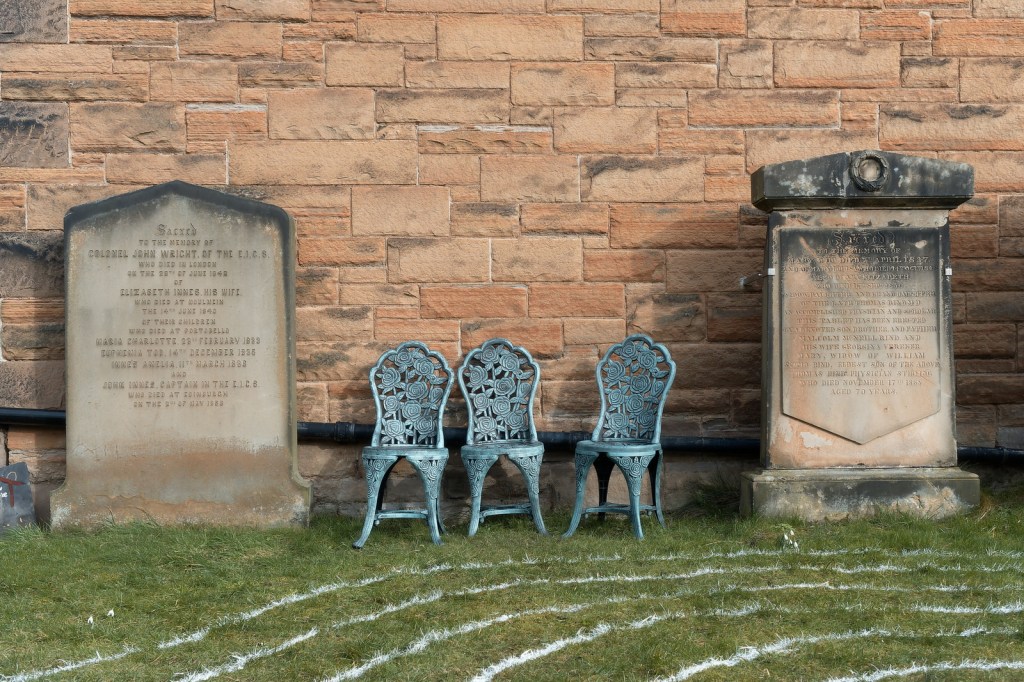
Saughton Park, Edinburgh, is one of Edinburgh’s hidden gems. Not literally hidden, of course. It’s easily found, and very popular with locals. But its position outside the city centre, a ten minute walk from the nearest tram stop, means that few tourists ever visit.
I was there earlier in the summer, with a group of friends to photograph the theme “red”. If you’re thinking there’s not a lot in this photograph that says “red” – I agree with you. At this point I’d already spent an hour or so exploring the theme. I needed a change of pace, so I decided on another challenge – to take a photograph totally unlike anything I’d ever shot before during my many visits to the park.
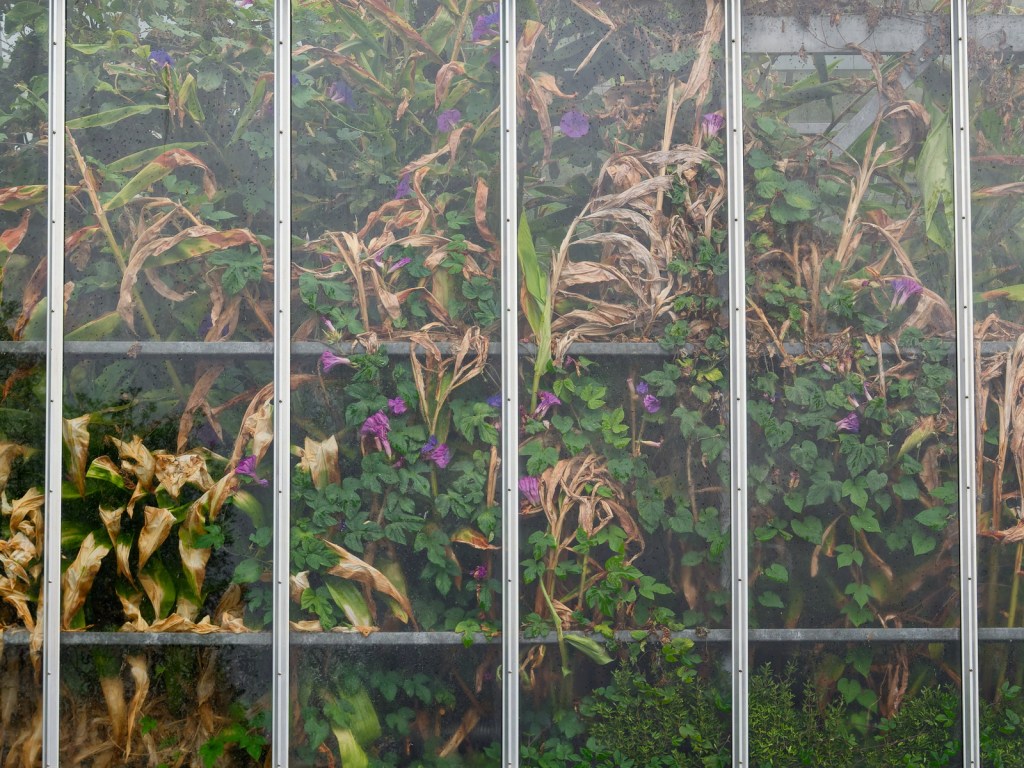
Stepping out of the glasshouse, I looked back to see this wonderfully complex view of the plants flattened and compressed against the glass. Viewed in this way, the plants completely lost their individual identity. Instead I was looking at colour, shape, and texture. But not chaos. The geometric grid of the glazing provided a structure that contained the abstraction, turning it into a grid of discreet images. There was a tension there. A grid imposed on the random patterns behind.
Some of the foliage was dying back, adding another dimension to the scene. Even on this bright summer’s day, the dying leaves gave the scene a sense of impermanence. The texture of the glass adds another layer to the composition – no reflections, but a feeling of distance from the greenery, a sense that it was in another world.
If this image has a theme, it’s about seeing differently. Looking beyond the obvious to capture how it feels to be in a glasshouse, rather than what the plants look like.
I think that’s one of the things I most enjoy about photography. As soon as you stop worrying about identifying the subject, you’re free to start paying attention to the shapes, textures and colours. And once you’re in that headspace, you’re in a much stronger position to capture an image that looks completely unlike anything else you’ve photographed that day. Hopefully in a good way.
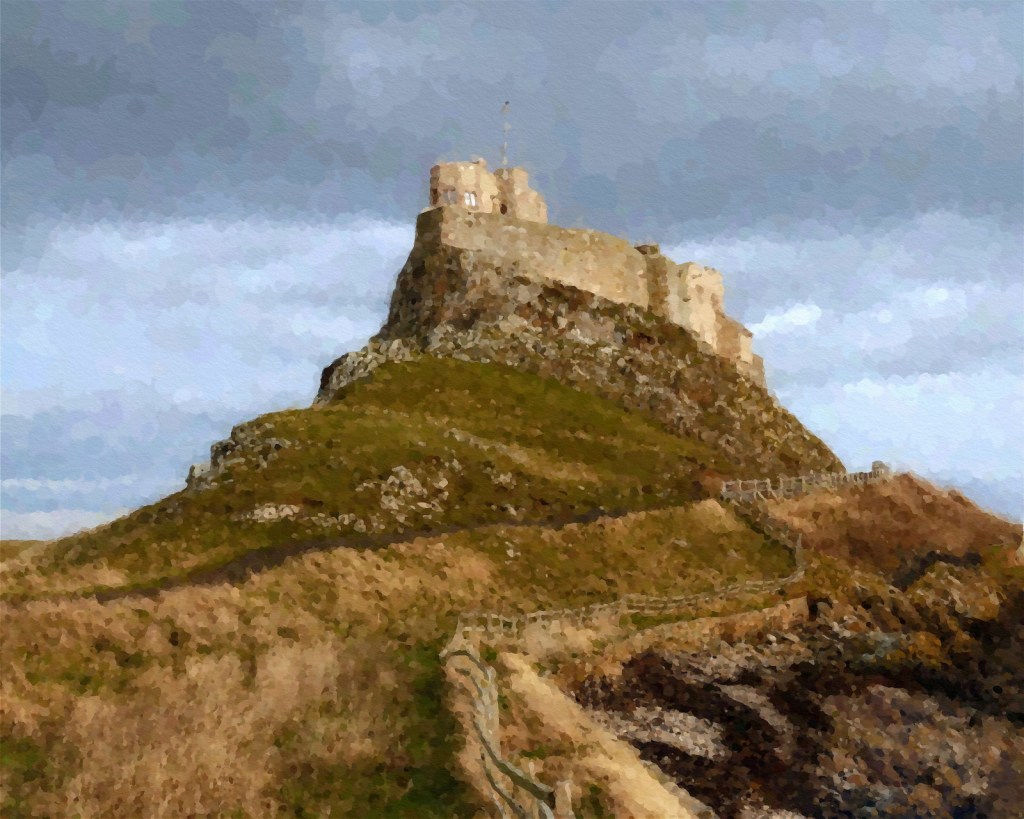
In my last post, I shared the workflow I use when preparing one of my photos for autopainting. In this post, I’ll share the very different results achieved by four different autopainting applications on Windows – and also my own final version of the same painting.
My own final version combines multiple approaches, layered and blended in Affinity Studio. All other versions use presets which are built into the various applications. In practice, these presets can be tweaked and improved to your own preference but here I’ve used the original unedited presets, with the intention of illustrating the main differences between the various programmes.
Of course, tweaking the presets to achieve your own unique result is half of the fun, and that’s what is shown in the final result.
Version 1 – FotoSketcher 4
This is my favourite of the autopainted versions. It’s especially impressive when you consider that FotoSketcher is completely free. The watercolour effect is a little understated, but of course that’s easily remedied if you spend some time adjusting the preset to your taste.
Preset used – Watercolor
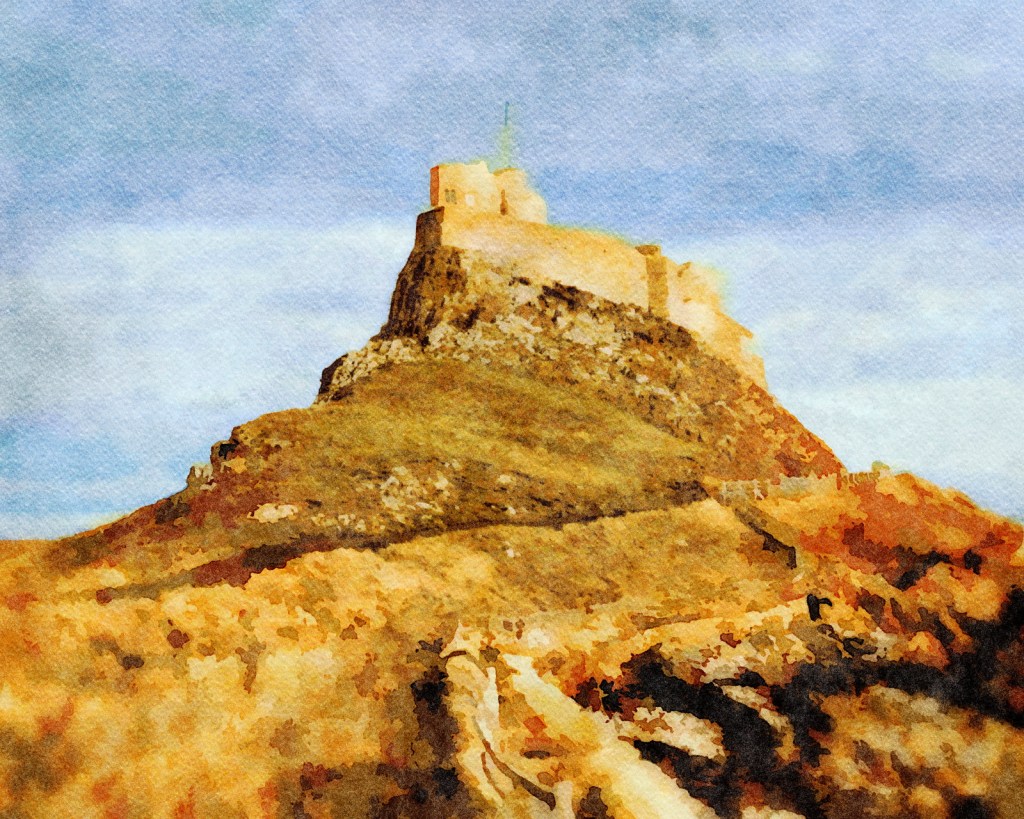
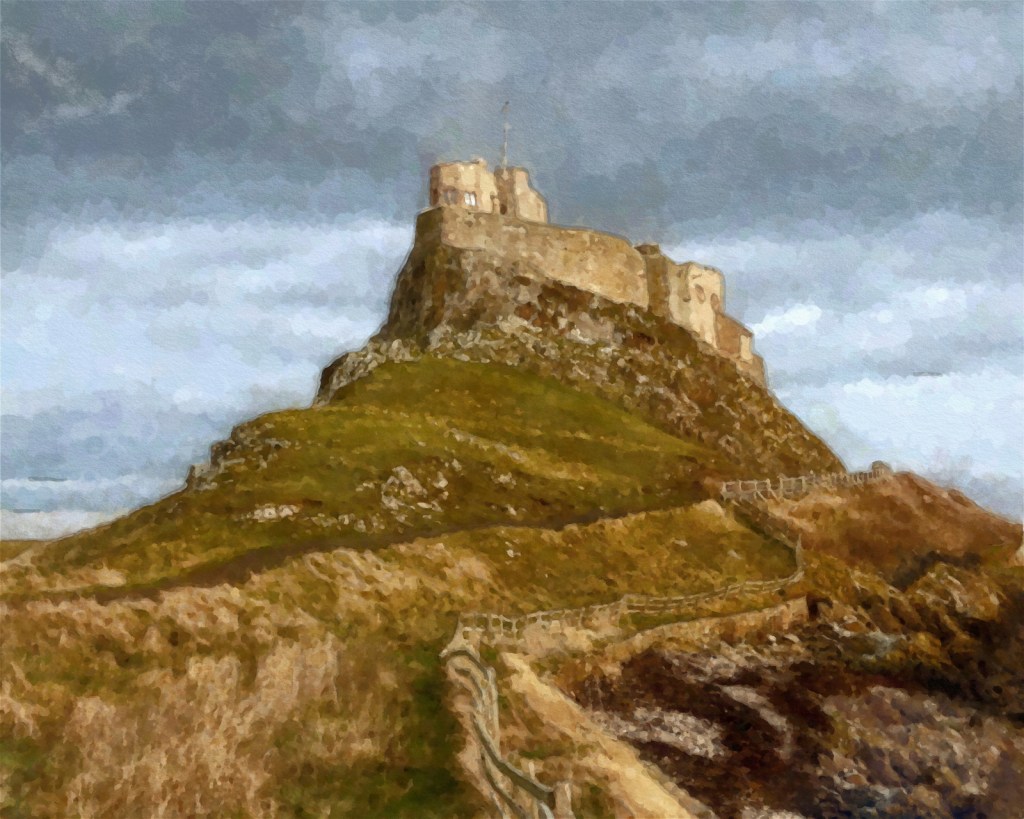
Version 2 – Jixipix Watercolor Studio Pro
This version has a lovely texture and the sky is particularly effective. The landscape is too bright but again, this could easily be tamed by adjusting the colour options within the programme.
Preset used – Landscape 01
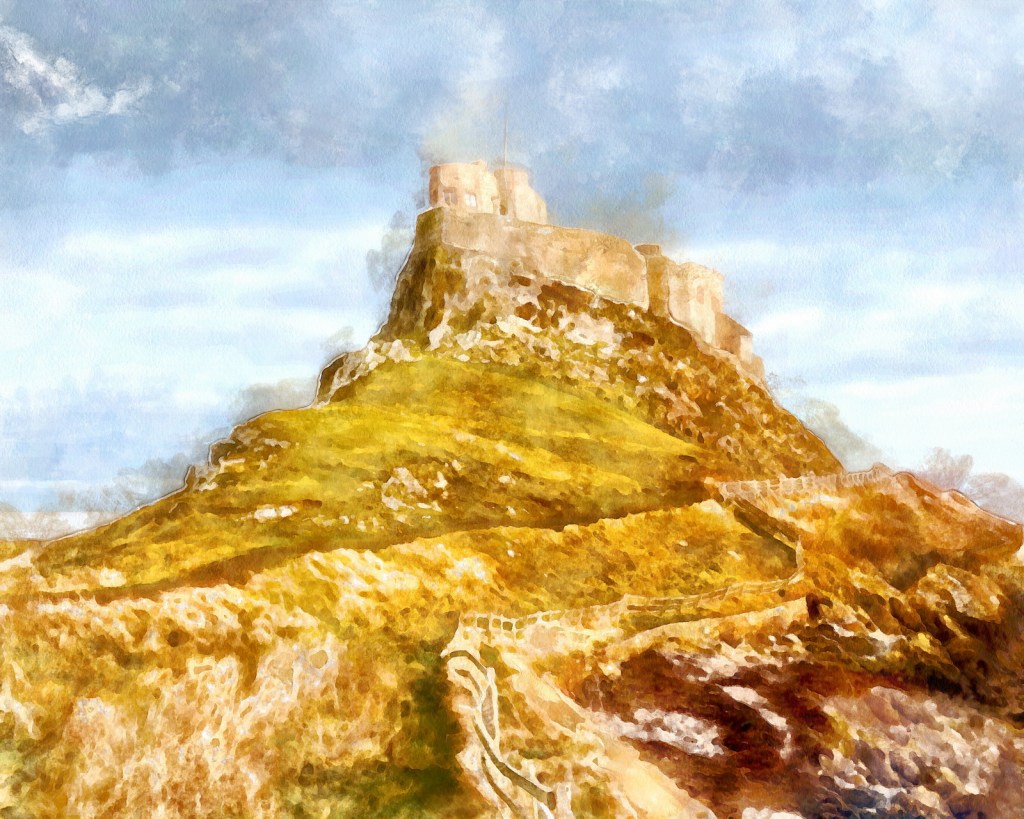
Version 3 – Dynamic Auto Painter 7
Dynamic Auto Painter is my go-to for this sort of work. I think FotoSketcher has edged it this time for “out of the box results”, but this version has a more hand-painted feel.
Preset – Textured Aqua Real
Version 4 – SnapArt 4
SnapArt 4 is probably the oldest application in use here. It was launched in 2013, which makes it positively ancient. There are advantages to that – it runs snappily even on my ageing laptop and is a good choice for very quick conversions. But there are relatively few watercolour presets, and this output would need a lot of tweaking to achieve the look I’m aiming for.
Preset – Watercolor Detailed
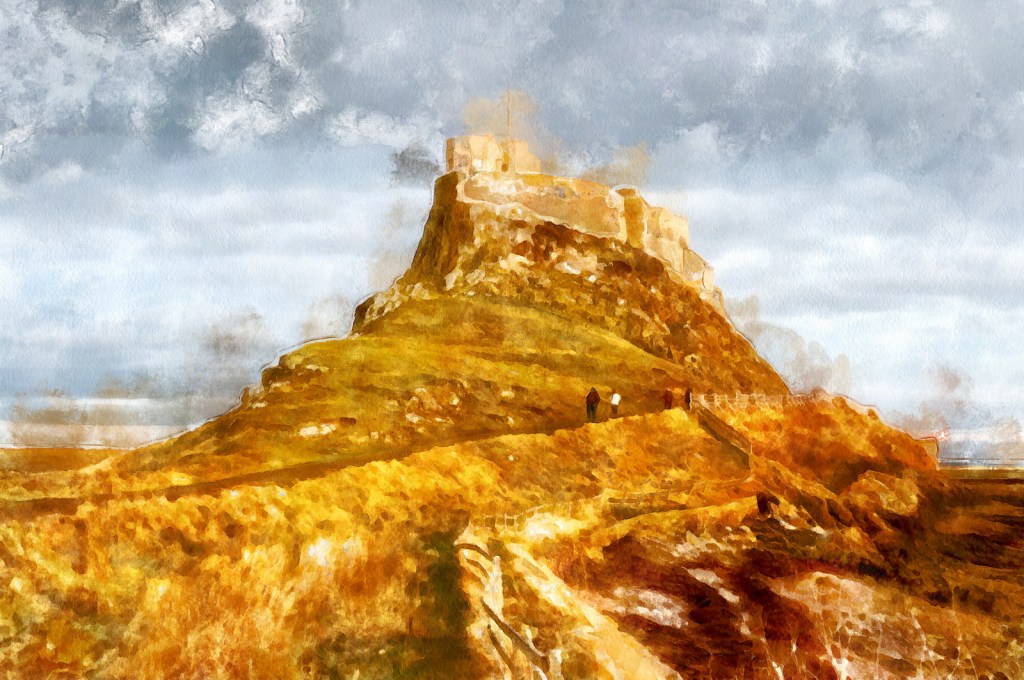
Version 5 – my version
This is my own version, reworked by layering multiple versions in Affinity Studio and adjusting the output using transparency and blend modes. There’s some further work too – colour grading, curves adjustments, and filter effects – particularly around the hard edges. I’m not trying to fool anyone that this is a real watercolour, but I hope it doesn’t look like I’ve just selected a preset and decided “that’s good enough”.
And that’s probably the conclusion to take away from this exercise – all four applications are capable of producing good results. But the enjoyment, the creativity, really begins when I take the autopainted versions and start reworking them to fit my vision. Much like photography, really. Snapshots are great – but your photography really starts to improve once you start planning what you want the final result to look like.
One of the pitfalls of autopainting software is its tendency to be literal. If a detail is in the photo, the programme includes it. If the photo is under or overexposed, if the horizon is squint, or if the buildings have converging verticals, then all of those elements will be carried forward into the finished picture. To address this issue, I’ve developed a workflow that makes the original photo look less photographic before I take it into my autopainting application.
Here’s a comparison so you can judge for yourself. The version on the left has been painted from my edited photo. The version on the right was created from the original painting.
The most obvious difference is in the sky, but notice also how the path in the edited version feels more hand-drawn, the distracting people have disappeared, and that awkward texture at the bottom right corner becomes easier to read as solid ground.
I use Affinity Studio for this workflow, but almost any photo editor will do the same job just as well.
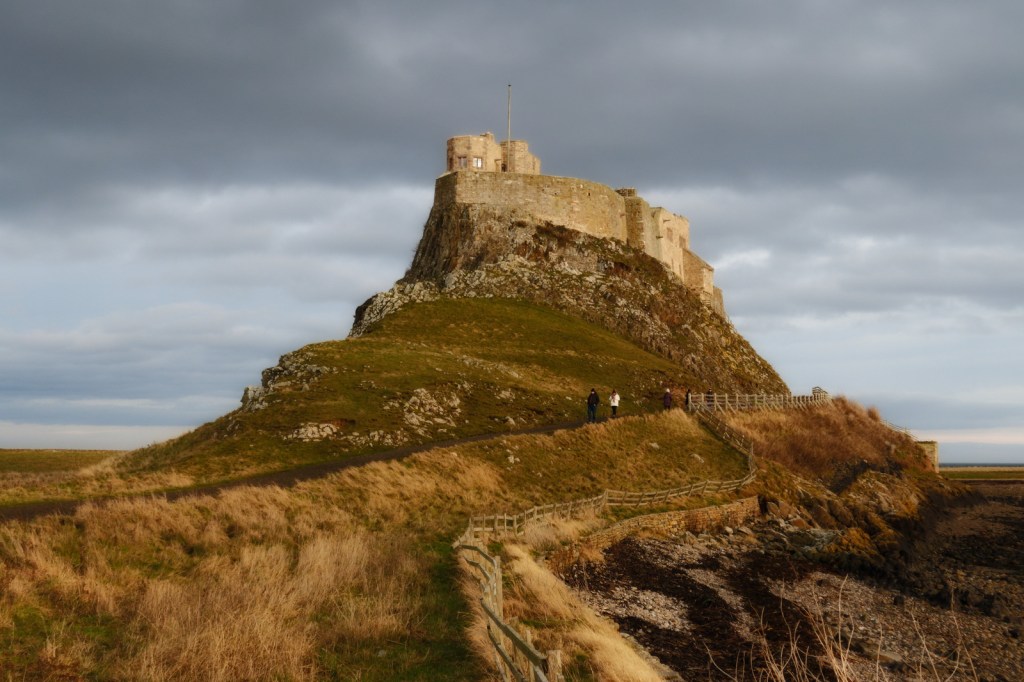
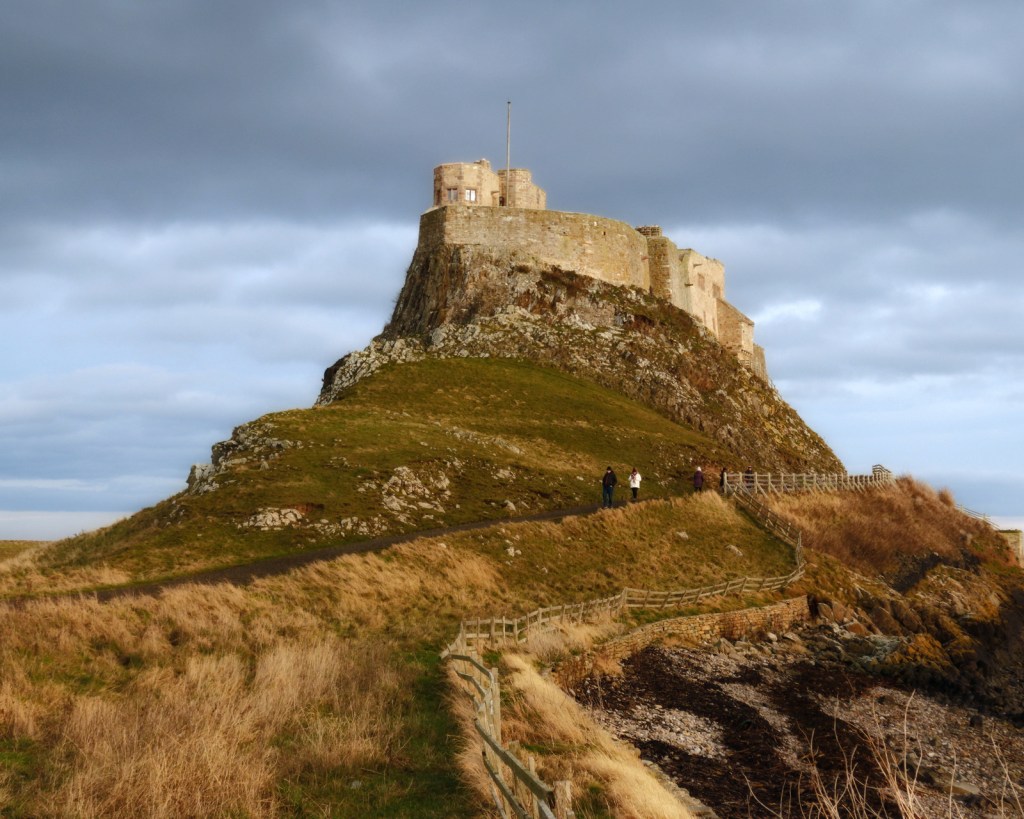
The original photo
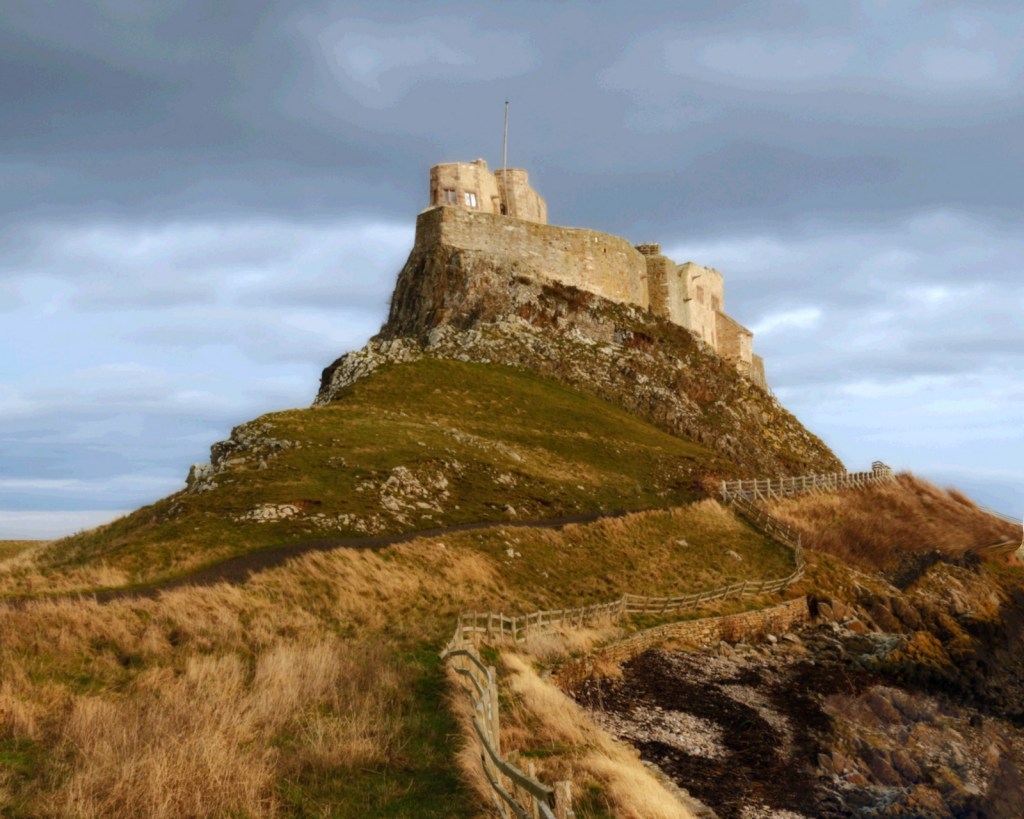
Lindisfarne Castle, Holy Island, Northumberland
Step 1 – basic editing
Start with basic editing. Get the white balance and exposure correct. Level the horizon. Correct the geometry if necessary.
Think about what aspect ratio you want your finished picture to be. 5:4, 4:3 and 3:2 are all excellent choices. 1:1 (square) can also be very effective. Avoid non-standard aspect ratios unless you’re aiming for a special effect.
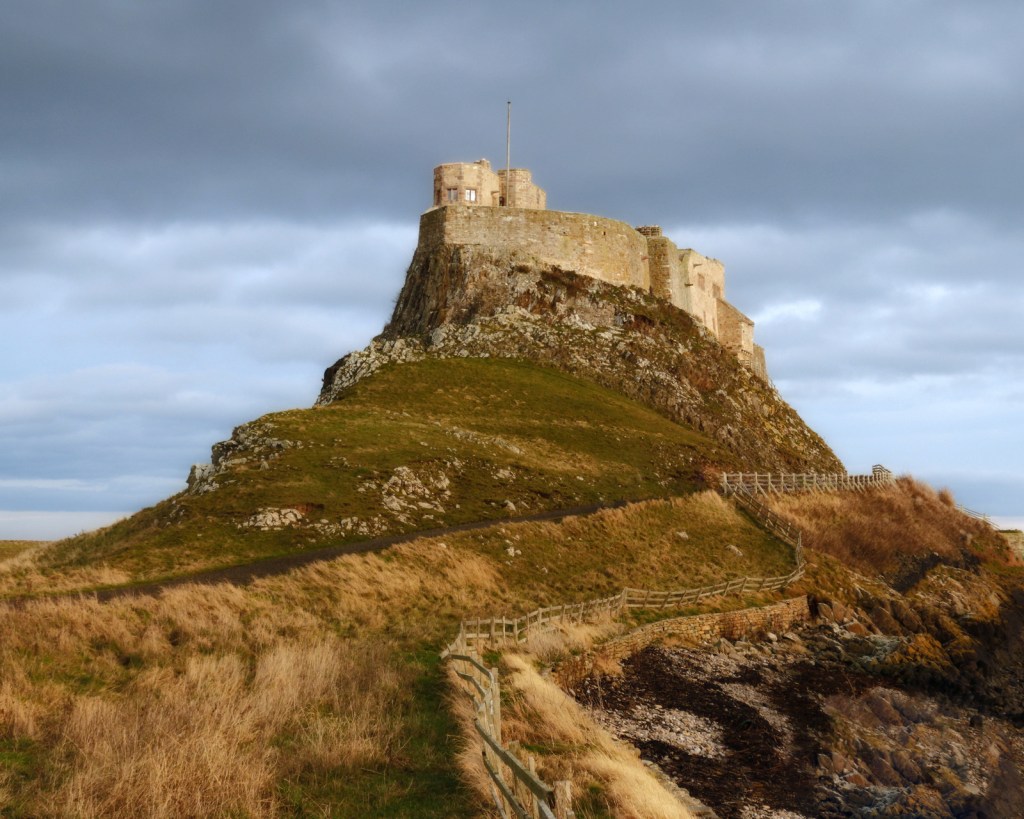
This photograph has needed very little work at this stage. I’ve cropped it to a 5:4, ratio, boosted the exposure by about a third of a stop, and slightly cooled down the white balance.
Step 2 – Remove distractions
If you were paining a real watercolour you wouldn’t paint every single detail you see in front to you. So this is the time to remove those unwanted details from your photo.
The sort of things you might remove are: background people; street furniture; cars in the background, and anything that “jars” with the subject that you are wanting to paint. Your objective at this stage is to simplify the composition, the way an artist would if they were sitting with their easel looking at the scene.
Here, I’ve removed the people on the footpath, and tidied up some intrusive branches that were dominating the bottom-left corner. There’s no need to do a perfect job, because this isn’t the version that people are going to see. Any messiness that you see here will disappear once the scene is painted.
Step 3 – think about shapes and colours
This is where we start to make the image less photographic.
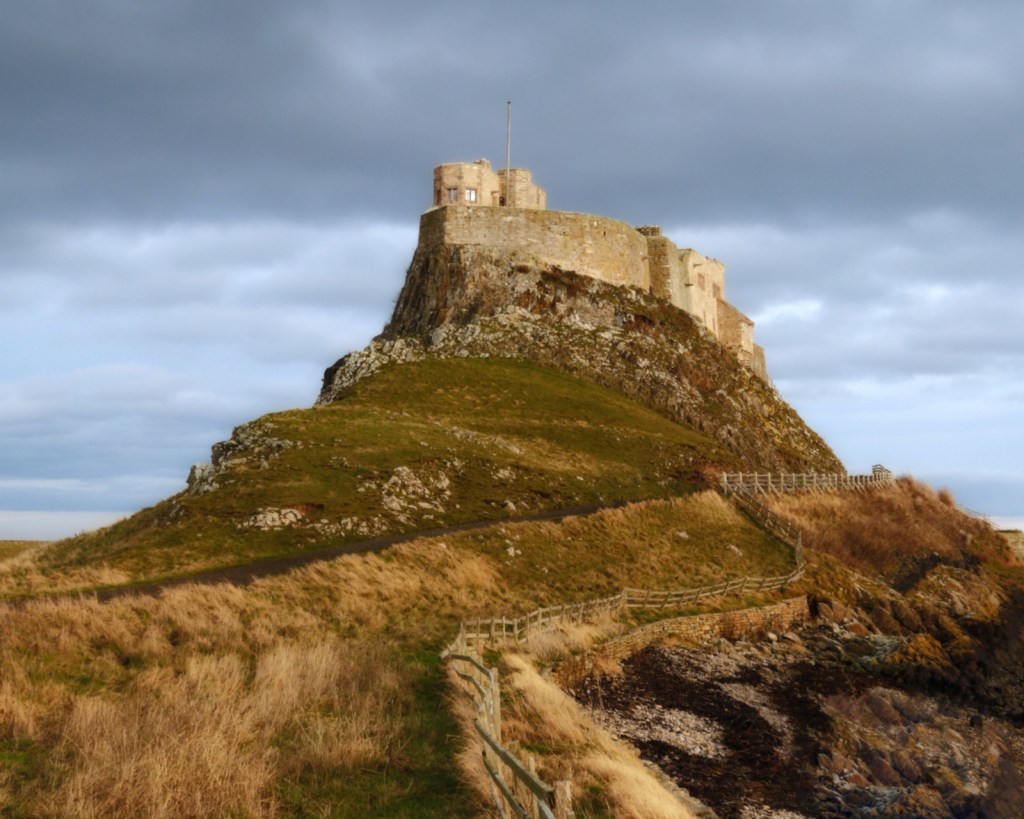
Duplicate your image onto a new layer and apply a gaussian blur. This will start to break down the image into blocks of colour. For a 20 megapixel photo, start around 1-2 pixels, and then adjust as necessary. Larger or smaller photos will need more or less blur. (I used 1.4 pixels for this 16 megapixel image.)
Now zoom into 100% and look at your image again. Think about the detail you need to keep. If the gaussian blur has caused you to lose that detail, back off and reduce the amount of blurring.
Step 4 – introduce geometric irregularity
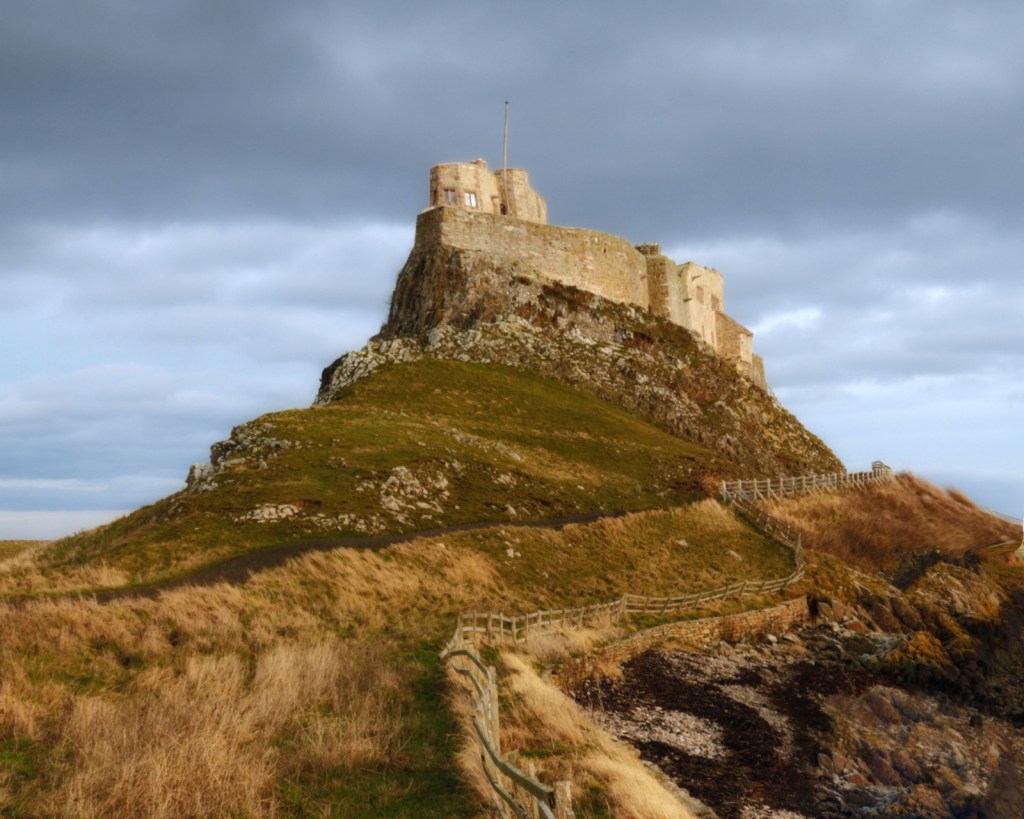
That path is too straight, and the flagpole is even worse. Leave it as it is, and the finished painting will look like it’s been drawn with a ruler. So the next step is to introduce some geometric irregularity to the photo, to make it look like it’s been drawn by an imperfect human hand. In Affinity Studio, the best way to do this is with the mesh warp tool. Be subtle – you don’t want the photo to look like it’s been drawn after a long drinking session. You’re just looking for something a little less geometric.
Take care at this stage. Don’t introduce too much change. Just enough to make the image look less geometrically precise.
And if you have buildings that look like they’re falling over, this is your last chance to sort them. They’re a dead giveaway that a painting has been drawn from a photograph.
Yes, I know the flagpole looks “off”. Trust me. It’ll look way more natural after the last step.
Step 5 – tonal grouping
Don’t skip this stage – it’s a basic building block that will make your photo look more painterly. What you’re doing here is creating individual masses of colour, instead of the continuous range of colours captured by the camera.
Start by creating a new layer. In Affinity, use the merge visible command to do this.
Use the posterise filter. Yes, it will make your photo look horrible. But by reducing the number of colours that your painting application has to work with, it makes its job much easier.
I’ve used 32 levels of posterisation here, backing off just as the sky started to break up.
Step 6 – final tweaks
Now step back and ask yourself if the photo will work as a painting. Here I decided that the image was oversaturated, and the foreground was slightly too dark. A slight curves adjustment, and reducing saturation by 15%, addressed both issues.
Step 7 – simplify the edges
This is very similar to Step 3, where we applied gaussian blur. The aim here is to soften the shapes before they are painted. Start with about half as much gaussian blur as you applied at Step 3. Zoom in to 100%, and then zoom out to full screen, before making your final decision.
The blur here has been very subtle – just 0.5 pixels.
And we’re done. The image is ready for autopainting.
The result
And here is the final result, painted using the Aqua Real – Textured preset from Dynamic Auto Painter 7. In my next post, I paint this same photograph using other autopainting software, to demonstrate some of the alternatives to Dynamic Auto Painter that are available for Windows.
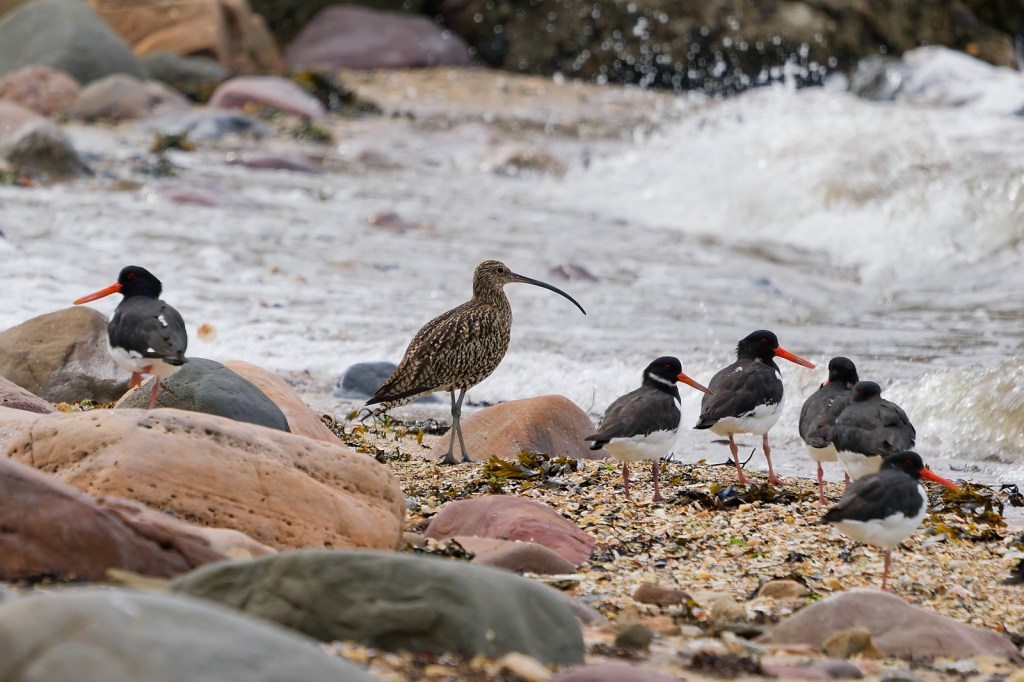
At Port Seton, near the caravan site where the Red Burn flows into the sea, a small beach lies hidden from view. Here the fresh water from the burn meets the salt water of the Firth of Forth, connecting the land and the sea. The iron ore which gave the burn its red colour has long since disappeared, but the name still commemorates East Lothian’s industrial history.
Every day, the tides reshape the shoreline, the sands shifting constantly. Coastal birds come and go, following the rhythms of the tide and the rhythms of the seasons.
The curlew stands apart, the muted plumage camouflaging it amongst the sand and the rocks. Around it, the oystercatchers command attention with their bold orange beaks.
The beach is easily overlooked. The outflow of the Red Burn separates this beach from Longniddry Bents to the east. Few people venture here, although the busy coastal road runs right past.
The birds remained only briefly. Just seconds after taking this photo, they were all gone – spooked by a sudden noise. The photo captures a fleeting moment, a group of birds in constant motion within a landscape that itself is continually changing. The scars of heavy industry give way, over generations, to the sounds of families enjoying their time on the shore.
The Curlew was my contribution to Portobello Art Walks 2026, in which a group of photographers was challenged to create an image on the theme Shift and Flow.
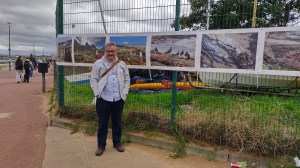
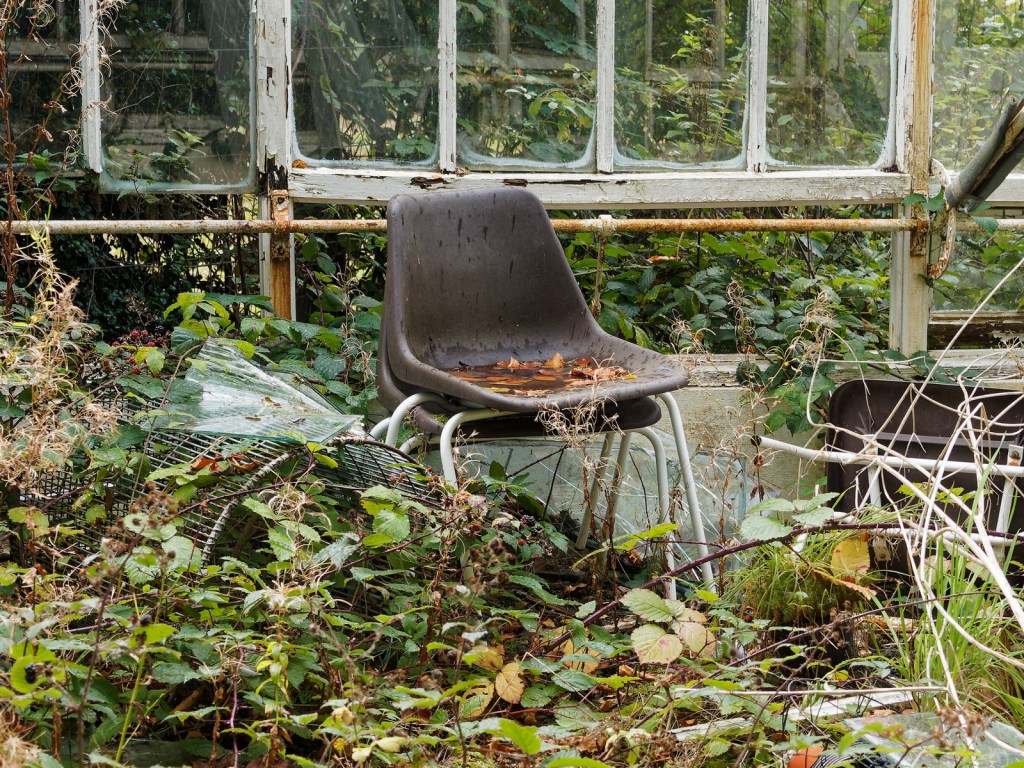
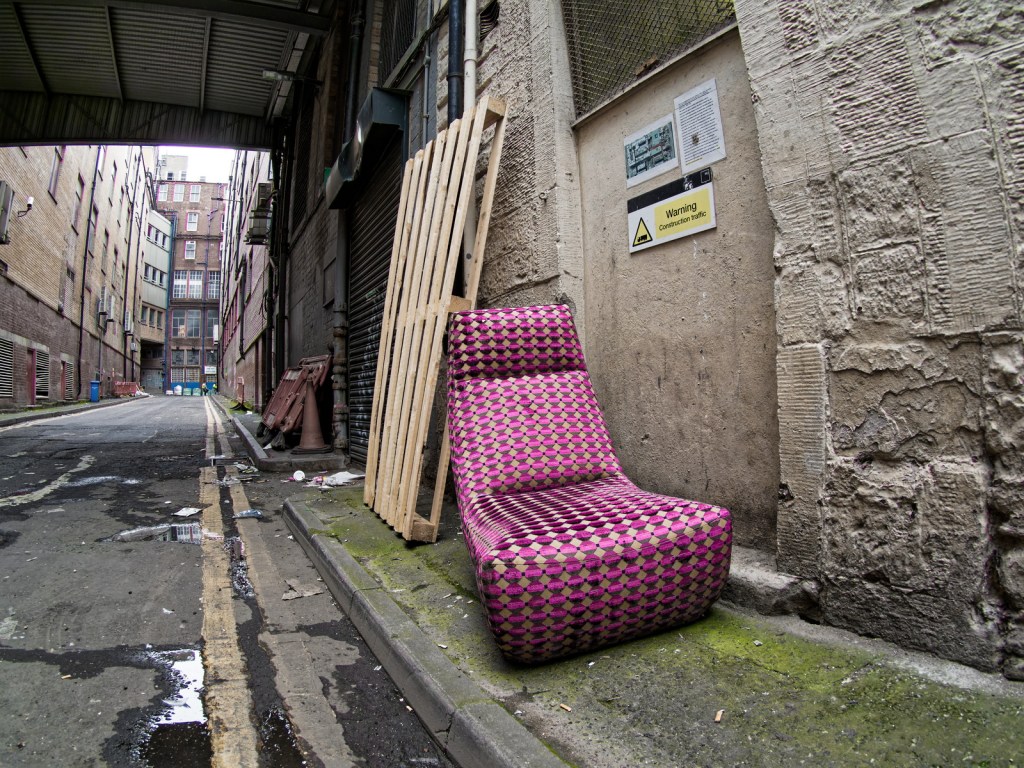
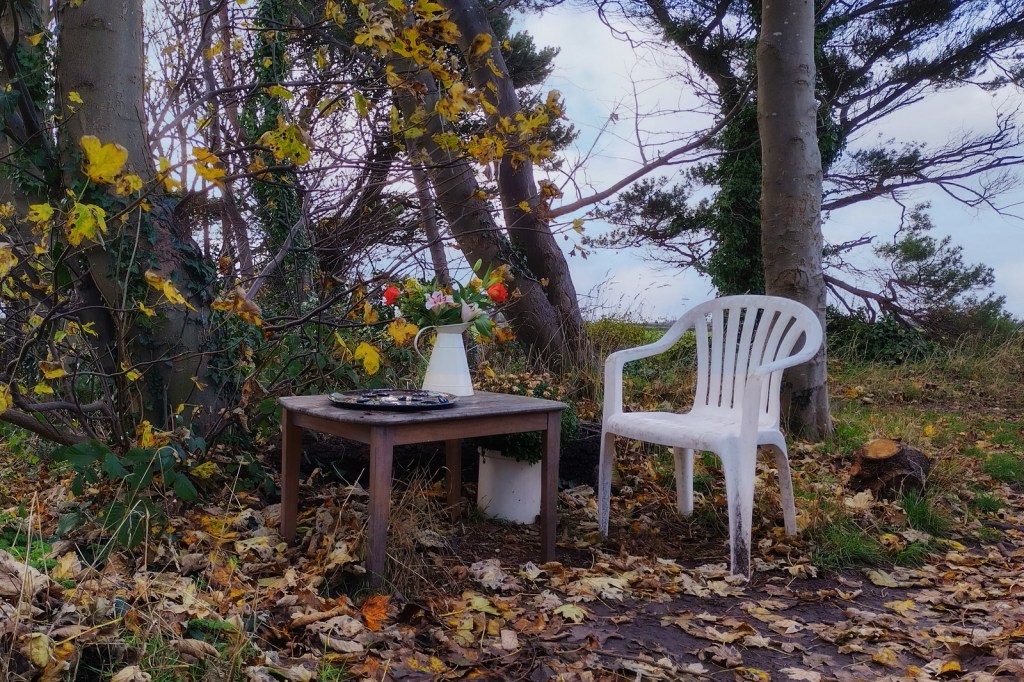
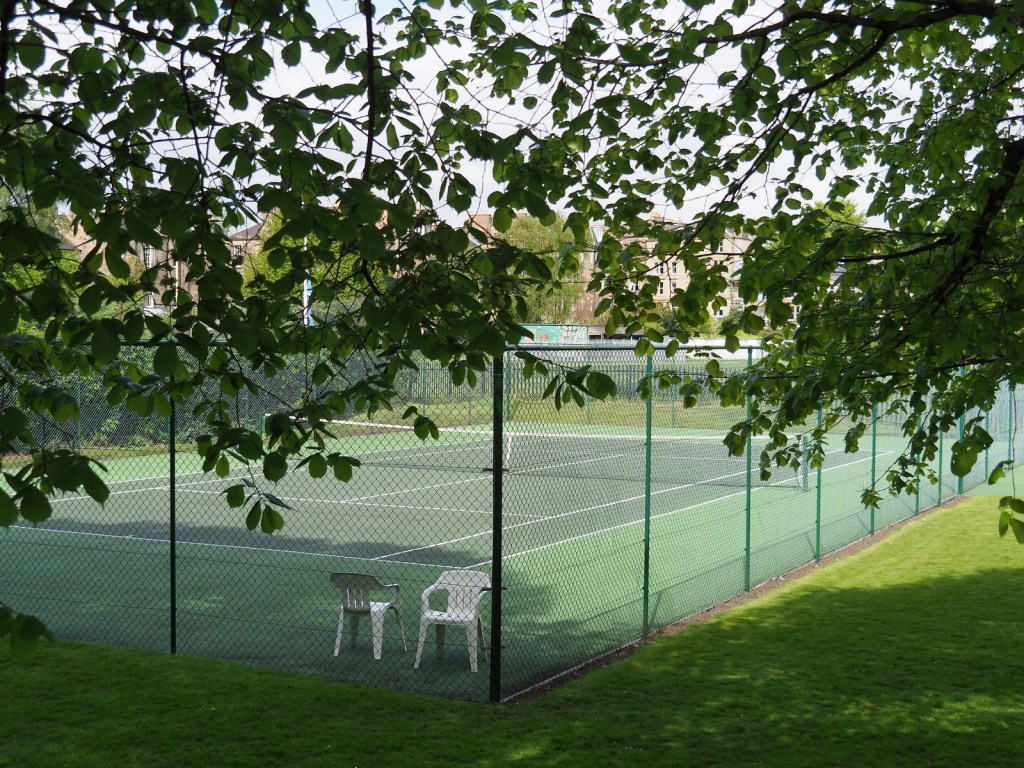
Sometimes a theme emerges quite naturally from your photography. Many years ago I photographed an abandoned cane chair in Kelso, in the Scottish Borders. It was a simple photo, but that simplicity captivated me. Since then, I’ve continued taking photos of abandoned or empty chairs wherever I’ve found them
And that’s the advantage of a theme. Individually, none of these photos are particularly remarkable. Grouped together, they share a liminal quality that makes them feel quite … strange.
What’s the strangest theme to emerge from your photography?
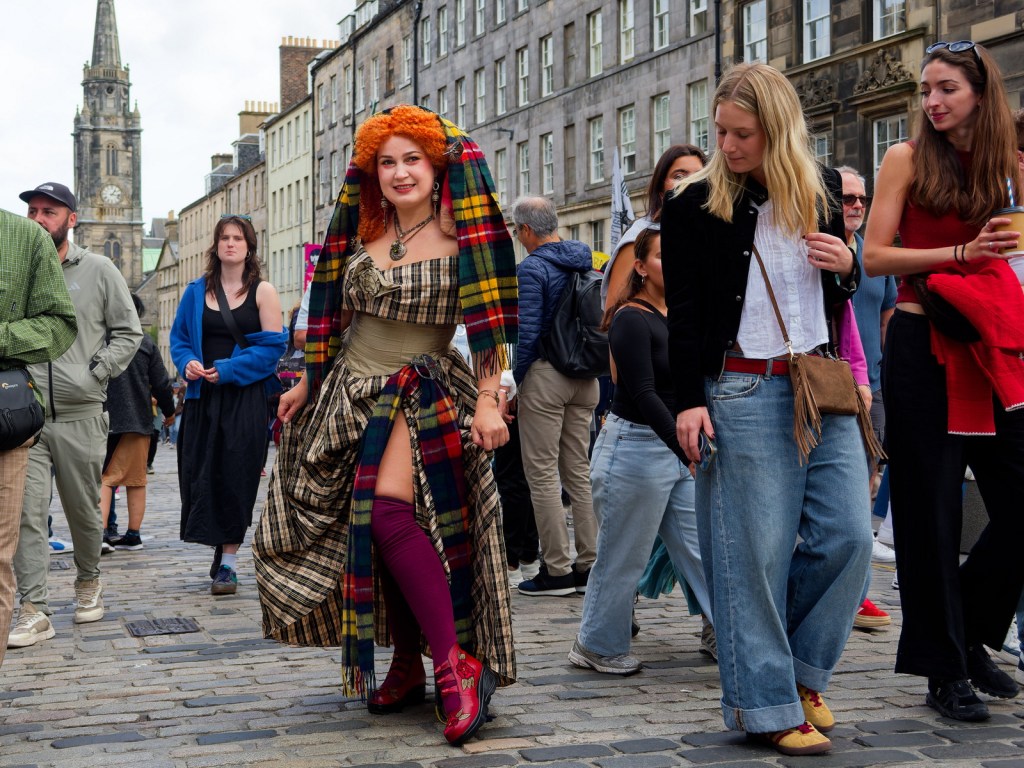
Street photography is hard. Usually you’re looking for the right moment. The eye contact. The point when something happens. Of the hundreds of photos I took of Olga, this is the one that works for me because this is one that succeeds in that aim.
Of course Olga knows I’m taking the photograph – she’s literally posing for me. The people around her? That’s where it gets a little trickier. Is it OK to photograph people without their knowledge? Well, this is Edinburgh’s Royal Mile during the Fringe festival. The bystanders may not have noticed me, but they have an expectation that cameras are everywhere. In that sense, this photo feels very fair. The subjects (Olga aside) may not have consented but they could see me with my camera. They had the opportunity, if they wished, to object.
And this is the photo that captures the decisive moment. Of the dozen or so frames I captured at this moment, this is the frame that captures shoe envy from the woman walking past.
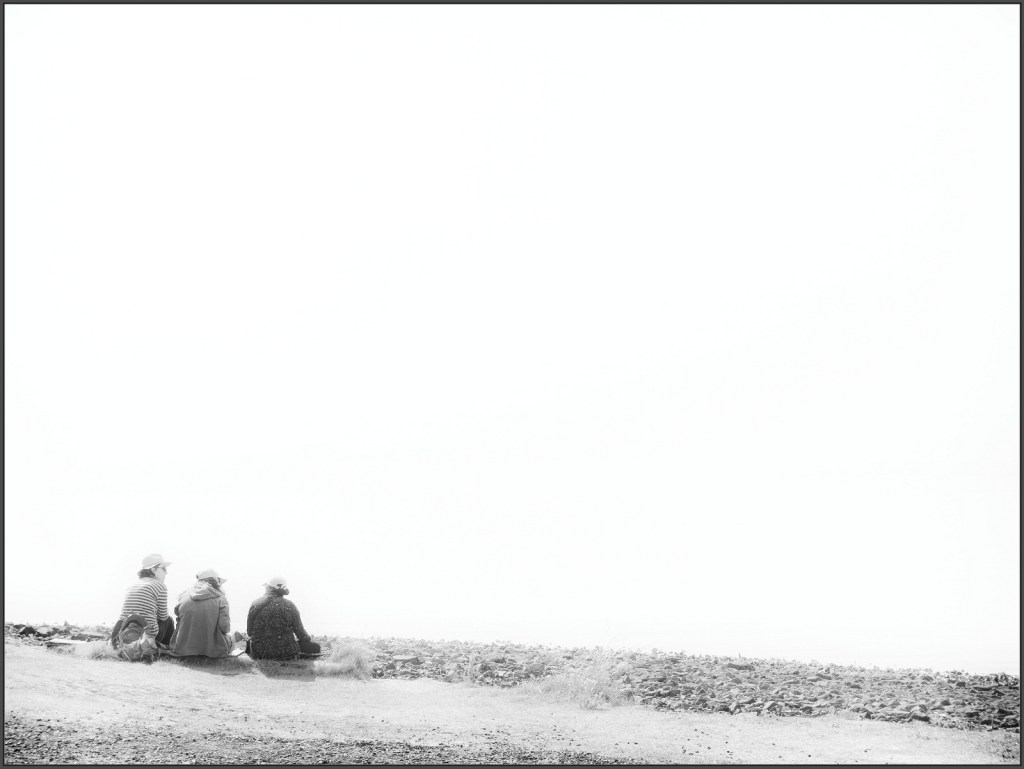
But photographing strangers is hard. That famous British reserve is real. So when, a few weeks earlier, I encountered these three people sitting there, enjoying the bright summer sunshine at Hawkcraig Point in Aberdour, I quickly assessed the scene and took this photo of three old friends, enjoying a joke and laugh together.
And now I feel I short-changed them. How hard would it have been to introduce myself, offer to take their photos, and walk away with a cracking set of candid portraits? Of course they might have said no, but I never gave them the chance.
Street photography is hard. But I’m improving. One day …
Camera Clubs are great for improving your photography in a friendly, supportive environment. They’re not always the best place to learn who you are as a photographer.
The camera club aesthetic, basically, is:
Your main subject must be bitingly sharp.
Don’t blow the highlights.
Use the rule of thirds.
You get the idea.
A lot of these rules are good photographic principles to live by. Learn them, internalise them, and – once you’ve gained enough experience – feel free to break them whenever you want.
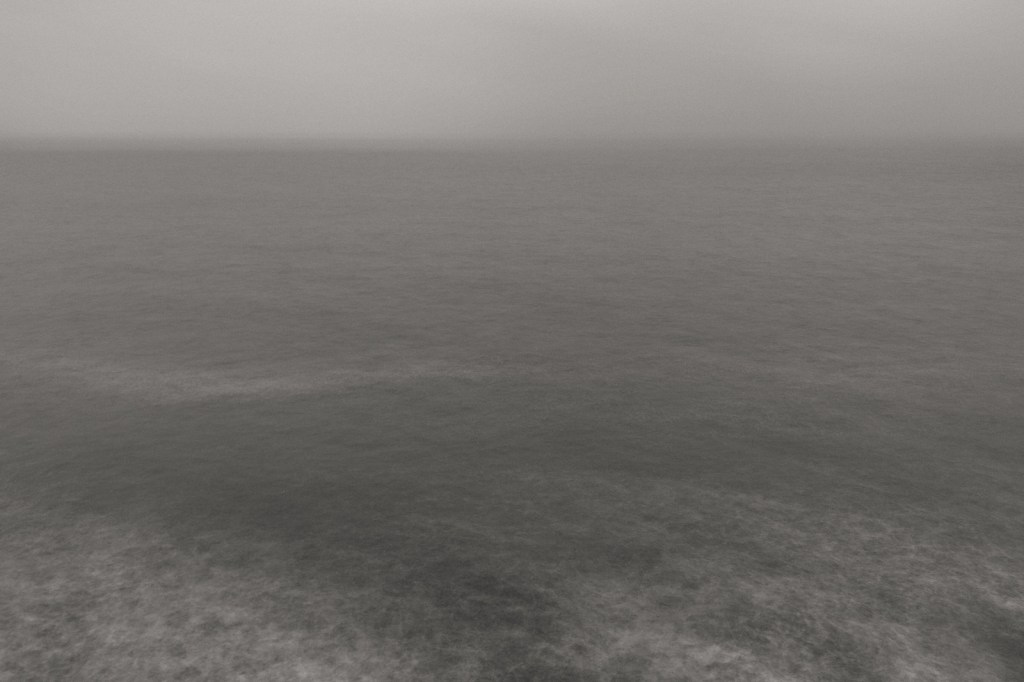
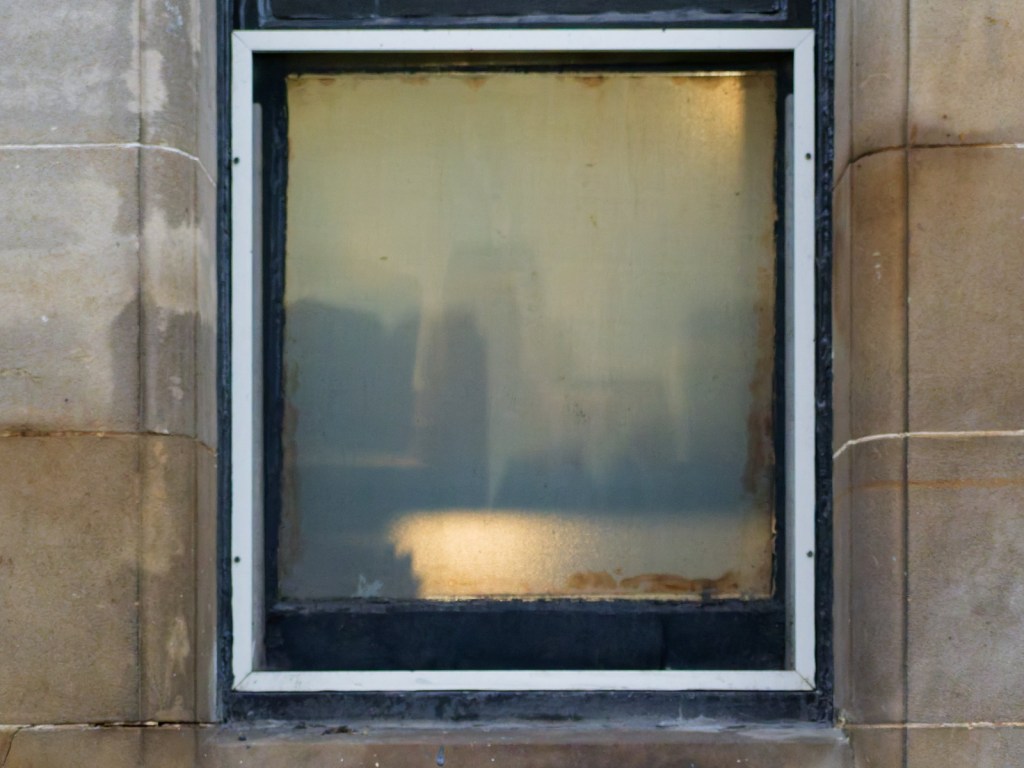
Bearing that in mind, what score do you reckon a camera club judge would give the photos at the top of the page? Personally, I think they would do well to score 13 or 14, and yet I’m hugely proud of them both.
The first image is of the Firth of Forth on a dreich, stormy day. It attempts to convey an impression of how it felt to be standing on the shoreline in the wind and the rain. It isn’t sharp. There’s no real subject. There is hardly any colour variation between sea and sky. But that’s how it felt. The wind and rain in my eyes, obscuring my vision. The sense of emptiness – no birds in the sky, no boats making their way back to harbour. Does it capture a sense of what the Firth of Forth actually looks like? No, of course not. Does it capture a sense of how I felt on that bitingly cold day? I hope so.
The second image shows a restaurant window in Morningside. Those abstract shapes, viewed through frosted glass, reminded me of the Manhattan skyline. It was a day of very little inspiration. I went out to shoot street portraits, and came home with almost nothing. Almost, but not quite. A found skyline in a grubby window rewarded me with a pleasing abstract.
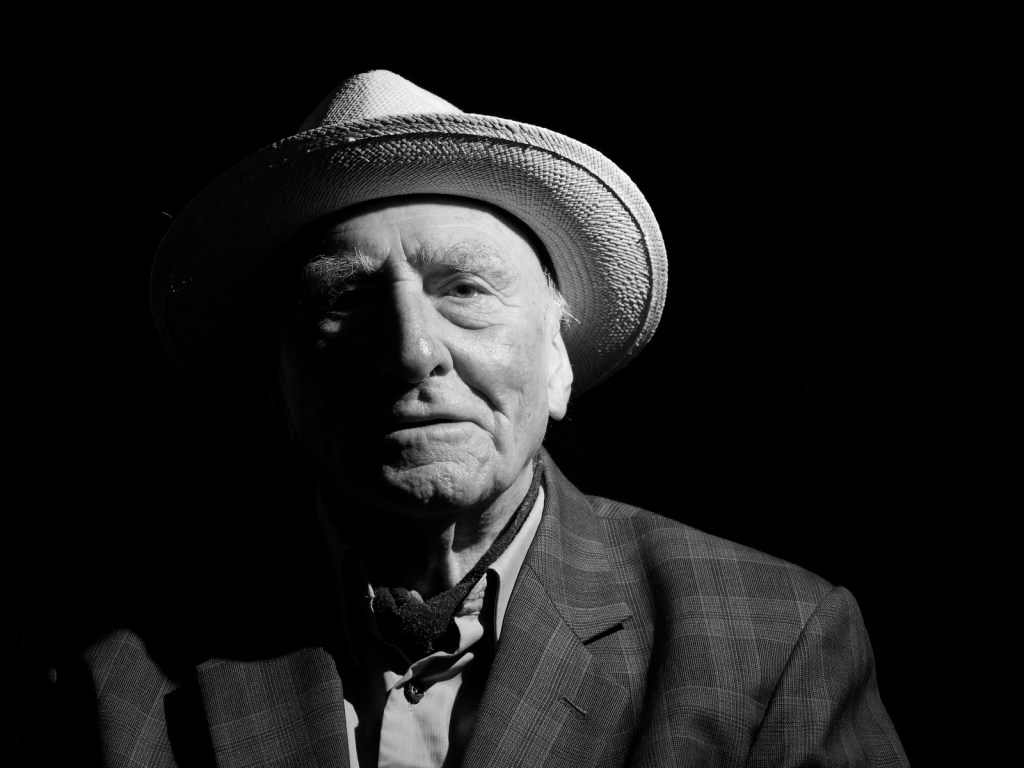
And when I follow the rules? This photo of a friend of mine is probably an 18 or 19 in a camera club competition. It’s a cracking portrait, but it isn’t who I am as a photographer.
I guess that’s the lesson. Camera clubs can teach us how to make technically better photographs. And without knowledge of those technical skills I could never have done justice to my friend with this monochrome portrait. But the photos I love – the photos which matter to me – aren’t always the same as the photos that do well in camera club competitions. I hope I never stop taking that type of photograph: the ones that leave camera club judges scratching their heads.
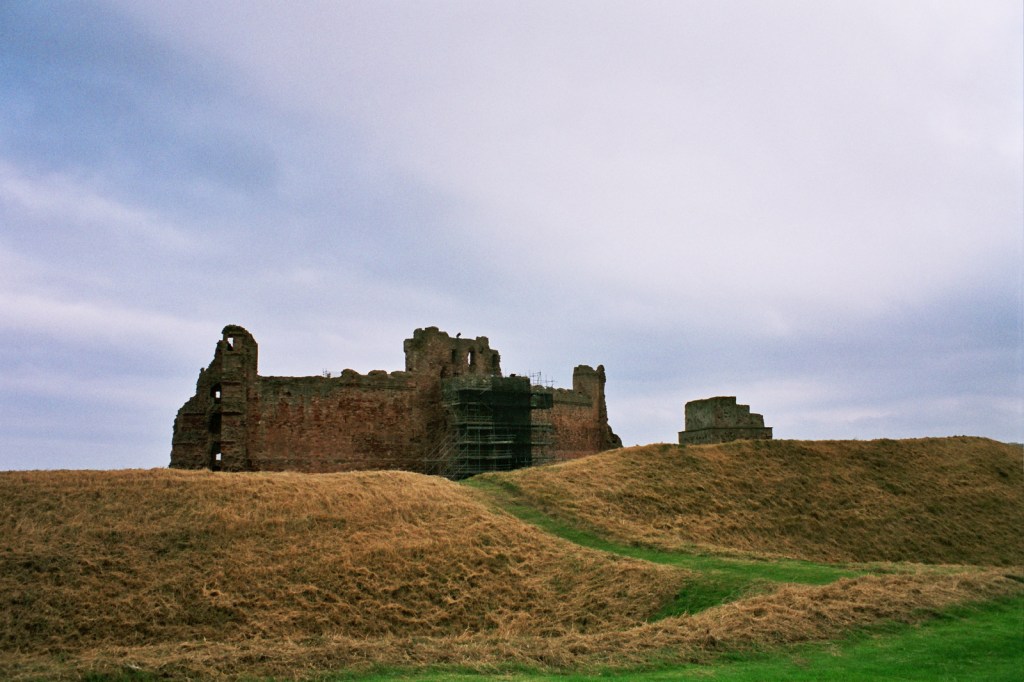
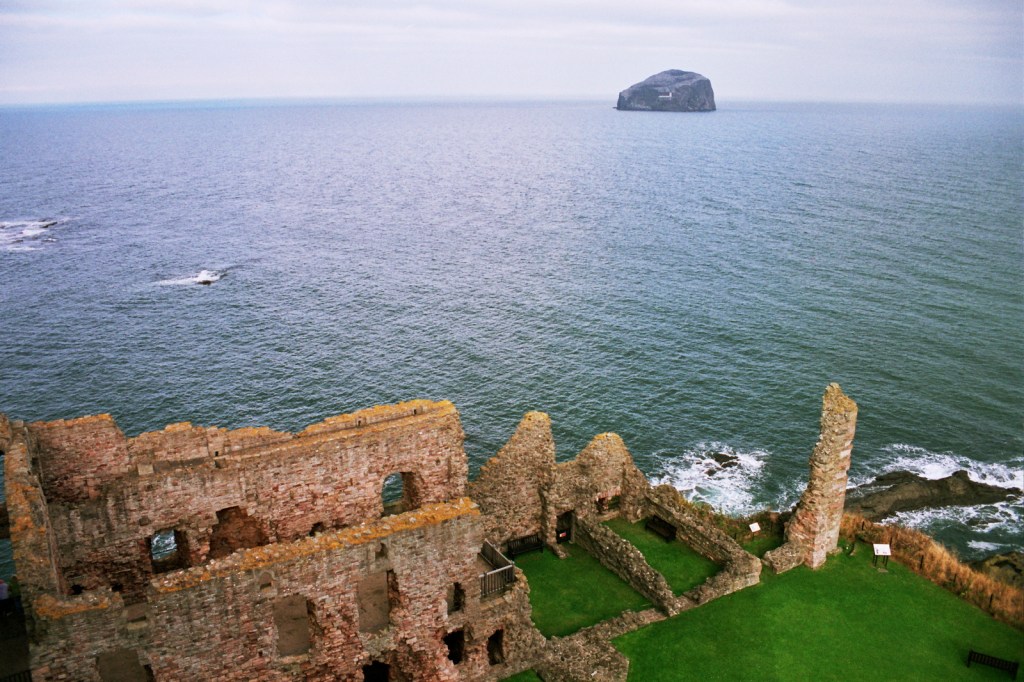
For a brief period around the turn of the century, Agfa Ultra 100 was my default choice for creative work. Here’s an example from 2005, taken in overcast conditions at Tantallon Castle, East Lothian, Scotland.
The sky is clearly overcast, but the colours remain saturated without being unrealistic. The red tones of the castle walls are well captured, and the grass still reads as green underneath that yellow scorching. In the first photo, that sky is utterly convincing, and yet there are hints that something has gone awry.
Look at the sea in that second image. Scotland does, on occasion, have beautiful blue seas. But under those clouds? It doesn’t feel realistic.
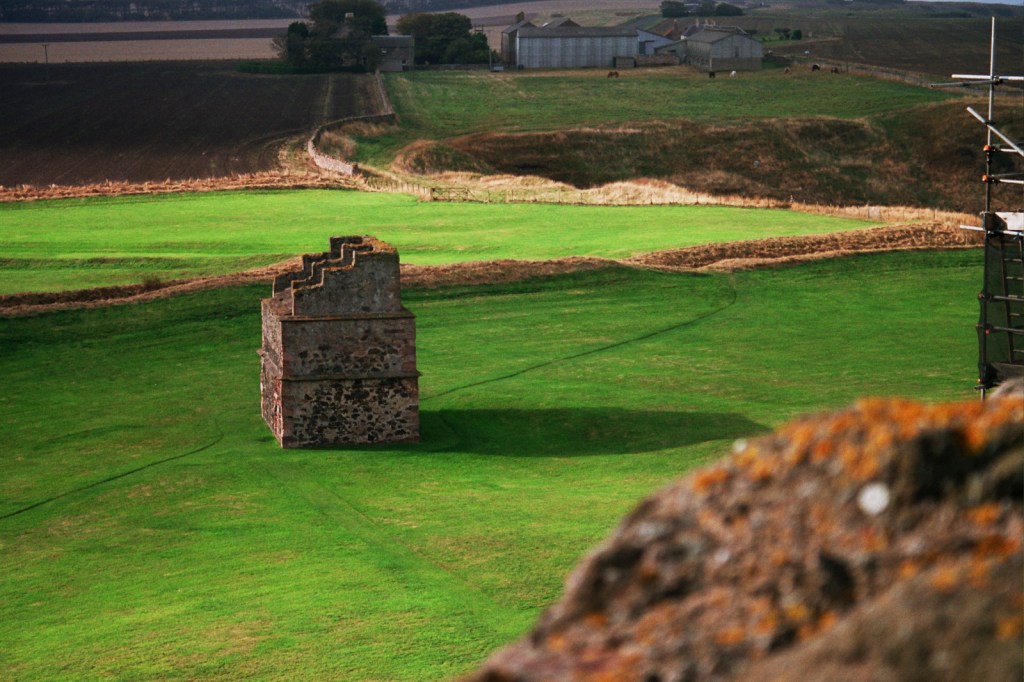
Not convinced? Shooting Agfa Ultra in bright sunlight reveals its weakness more clearly
These photos were taken the same day, at the same location, when a break in the clouds allowed the sun to break through. Scottish grass isn’t really that colour. Agfa Ultra’s beautiful red tones and neutral white balance could quickly be overwhelmed by that nuclear green grass when photographing in bright sun. For all that, I loved the film and I was saddened when it disappeared from the shops a year or so after these photos were taken.
Today, the emulsion is easily available as a LUT or a filter effect. Here’s the version from DxO Filmpack.
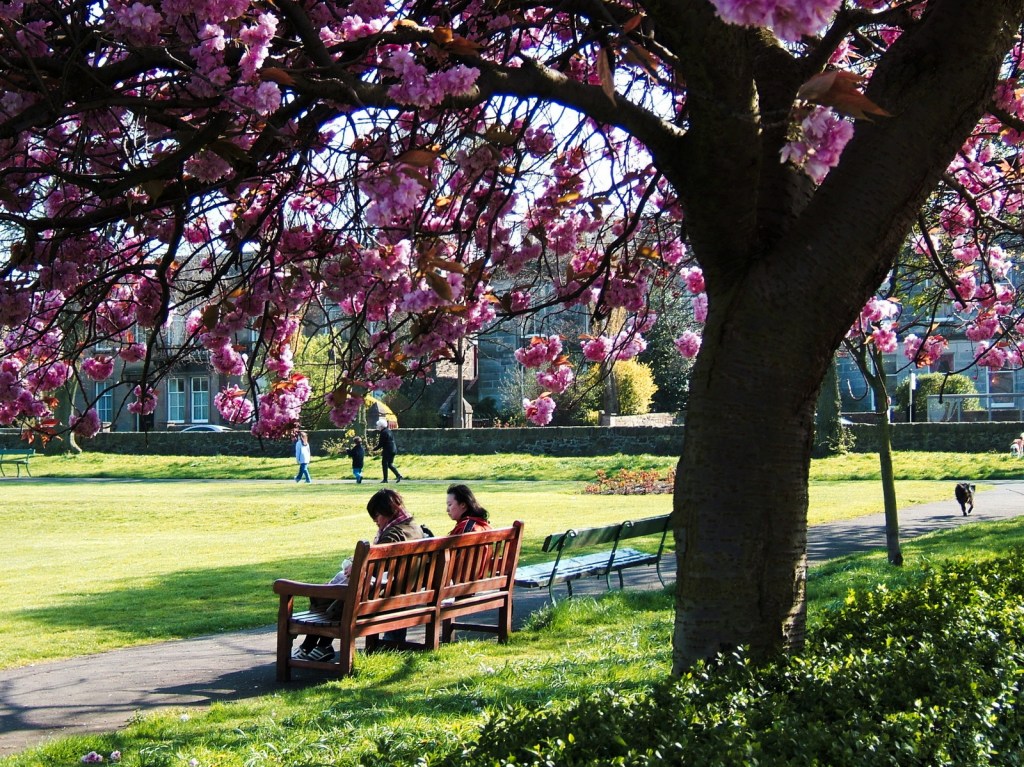
The original photo (right) was shot earlier that year in Daisy Park, Joppa, Edinburgh. The camera was a Fujifilm Finepix E550 using the natural colour mode. It’s a gentle image with accurate but slightly undersaturated colours. The Agfa Ultra simulation (left) gives a more saturated film-like feel while keeping the greens of the grass under control A good result, I think, but I still miss the original film. Sometimes.
ACDSee users have a problem. They have two different options for keywords, and another option for categories. Which one is best? The answer of course is that all three options are correct in different circumstances, and it’s important to understand their various strengths and weaknesses before you start using them. So here’s my suggestion for how you might want to use them.
Don’t be concerned if the way you use keywords and categories is completely different. Nothing is set in stone here. If you’ve found another way that works for you, stick with it.
This is the first in a series of posts taking a deep dive into ACDSee keywords and categories.
Categories
Categories can be used to describe how you are using a photograph. They are hierarchical, which means you can stack specific categories beneath more general categories. And if that all sounds a bit woolly, I hope this example will make it clearer.
Competition Entries
Competiton 1
Shortlist
Final selection
Competiton 2
Shortlist
Final selection
Winning entries
New
Unsorted
To be processed
Processed (for export)
Portfolio
Portfolio candidates
Current portfolio
Specialist portfolios
Macro
Portraits
Projects
Project 1
in progress
Complete
Skills development
Difficult exposures
White balance experiments
ACDSee Categories are hugely powerful for describing your relationship with an image. Is it portfolio-worthy? Have you previously used it in a competition? Is it part of a project? Importantly, a photograph can be assigned to multiple categories, meaning that you don’t need to make duplicates of a photo if it’s being used in multiple projects.
Also however, ACDSee Categories are ACDSee-only. If you move away from ACDSee, you’ll lose all of that category information you have so carefully added. Which is good to know before you start investing a lot of time in them.
Next – do you want a way to describe the content of your photographs? Something that will travel with the photographs, and be readable by other software? For that, you need …
IPTC keywords
Yes, I know, that’s a dreadful name. Unfortunately we need to specify IPTC keywords to differentiate them from ACDSee keywords, which we’ll discuss next.
Keywords – of whatever type – are usually used to describe the contents of a photo.
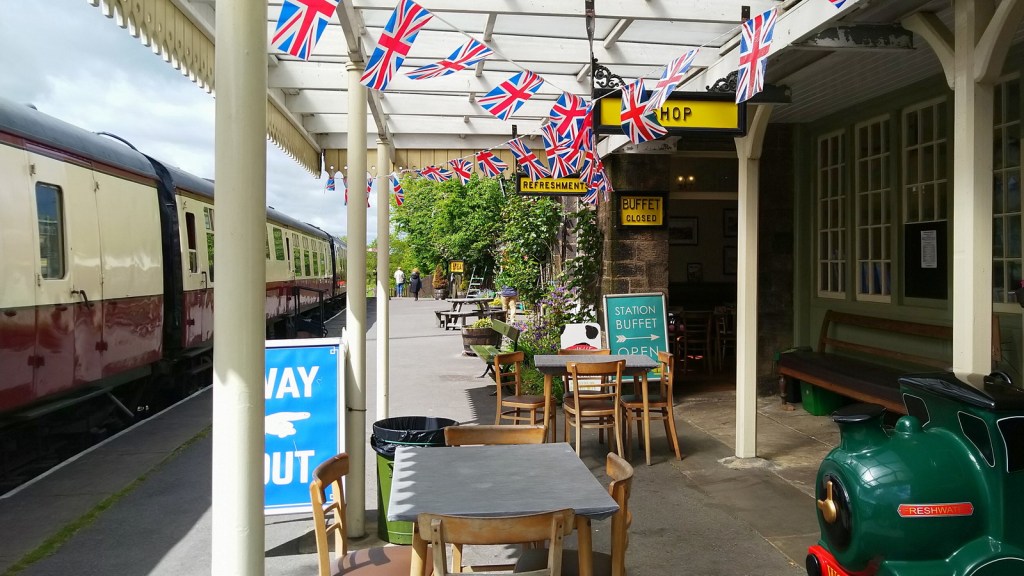
This photo might have the following keywords:
Embsay and Bolton Abbey Steam Railway
Bolton Abbey Station
heritage railway
railway platform
railway carriage
station buffet
Union Jack bunting
station canopy
Yorkshire
nostalgia
Enter any of those search terms into ACDSee and you’ll find this photo very easily. Even better, the same search terms will work in Digikam. Lightroom, or almost any other photo organiser. But have you noticed something awkward about those IPTC keywords? If you’re thinking “there’s a lot of repetition”, I agree with you. That’s because IPTC keywords are not hierarchical.
Another limitation of IPTC keywords is that they are very specific. If you search “station”, will you find a photo tagged “Bolton Abbey Station”? That depends very much on what type of search you are doing.
Given these challenges, there must be a better way to keyword your photos? Yes there is. ACDSee also supports hierarchical keywords. And for hierarchical keywords you need…
ACDSee keywords (usually called “keywords” in ACDSee documenation)
With ACDSee keywords, you can make the keywords hierarchical.
Places
England
Yorkshire
Bolton Abbey Station
Transport
Railways
Heritage Railways
Embsay and Bolton Abbey Steam Railway
Railway Stations
Railway Carriages
Buildings
Station Buffet
Architecture
Canopies
Flags
Union Jack
Bunting
Themes
Nostalgia
This is much more flexible.
You can find all your photos of bunting with a single keyword search
Or all of your photos of Union Jacks
Or all of your flag photos – all with a single search
You can find all your photos of Yorkshire with a broad search
Or you can do a more specific search for Bolton Abbey Station
You can easily do a search for all your photos of heritage railways
Or you can just as easily do a broader search for any of your railway photos
The downside is that ACDSee keywords are specific to ACDSee. If you ever decide to start using another software like Lightroom or Digikam, they won’t be able to use ACDSee Keywords.
Thankfully, ACDSee offers a way to convert ACDSee keywords to IPTC keywords. So why would anyone ever choose to use IPTC keywords instead of ACDSee keywords? I’ll be returning to that question in the next post in this series.
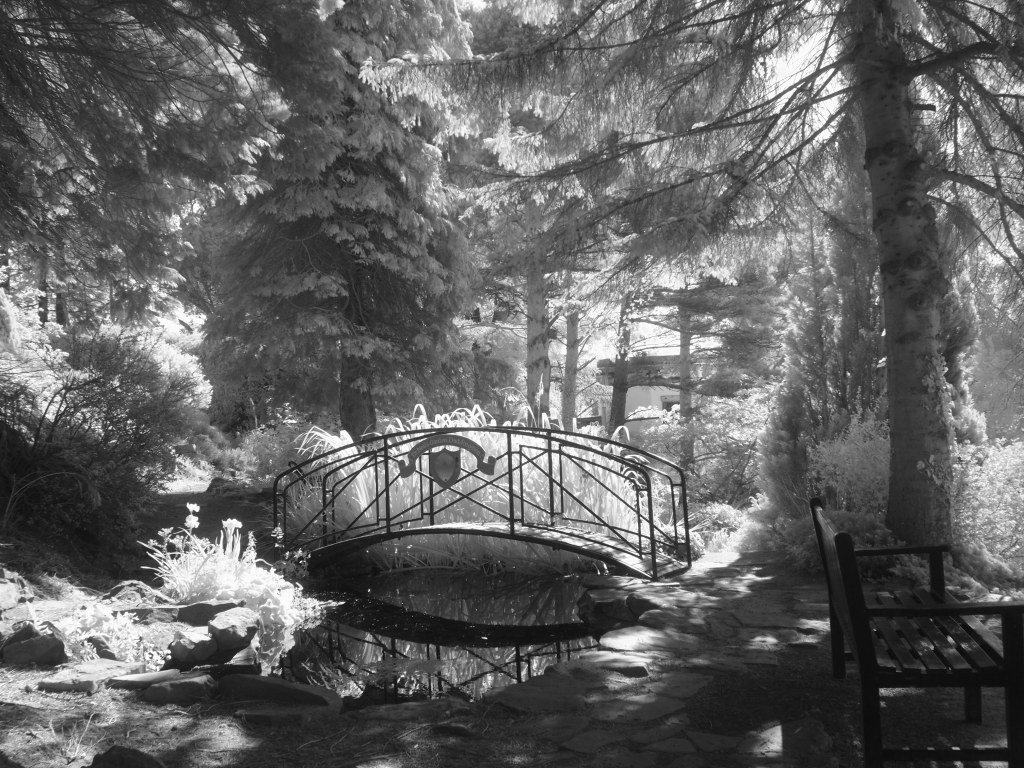
The bridge over the pond at Doctor Neil’s Garden, Duddingston, Edinburgh. Photographed using a 590nm infrared-adapted Olympus Pen E-P2 and Panasonic Lumix 12-32mm lens. Processed in DxO Photolab and Affinity Studio.
For me, the main challenge of infrared photography is translating the vision – what I saw inside my head when I pressed the shutter – into a finished photograph. I knew what I wanted when I shot this scene. Strong contrast, glowing highlights, the trees framing the bridge. Nothing too dramatic. The scene I photographed was a delightful moment of peace and coolness from a too-bright day. I wanted to capture that sense of peace in a photograph with a serene, dreamlike feel.
DxO Photolab was my starting point. I applied a custom dcp profile (thank you Rob Shea) and then an Ilford HP5 LUT (converted from a RAW Therapee HaldClut). Some fine tuning, some negative fine contrast, a wee geometry correction, and then took the TIFF into Affinity Studio to selectively apply a bloom filter to the highlights and … job done.
Like I say, infrared processing is hard. And while there are various applications out there that do it well (shout out to RAW Therapee) I haven’t found anything that works better for me than my DxO/Affinity workflow.
I’ve spent a lot of time experimenting with the monochrome setting on my Pen E-P2. With the red colour filter applied in-camera, and a slight tweak to sharpness and contrast, it does a pretty good job.
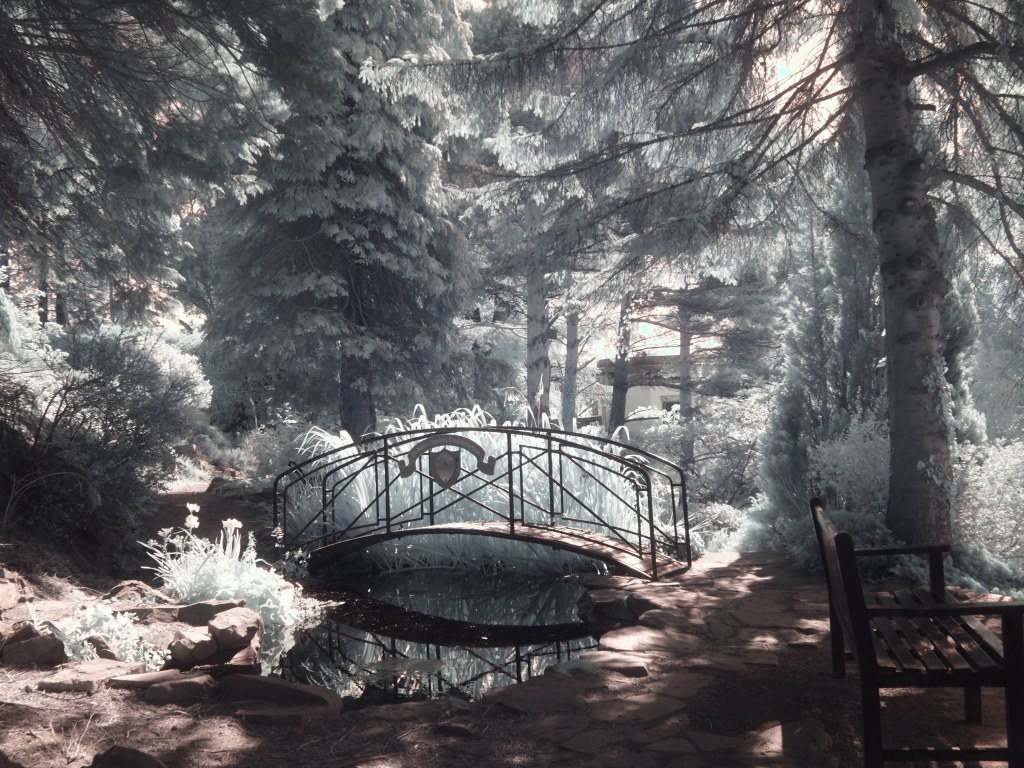
The same photograph, straight out of camera using the camera’s own, slightly modified, monochrome setting. It’s perfectly usable but it misses the hallucinatory feel of the processed version.
Just for comparison, here’s the same photo processed in OM Studio to replicate the original in-camera JPGs. The first image uses a daylight white balance. The second uses the same processing settings, but with a custom white balance.